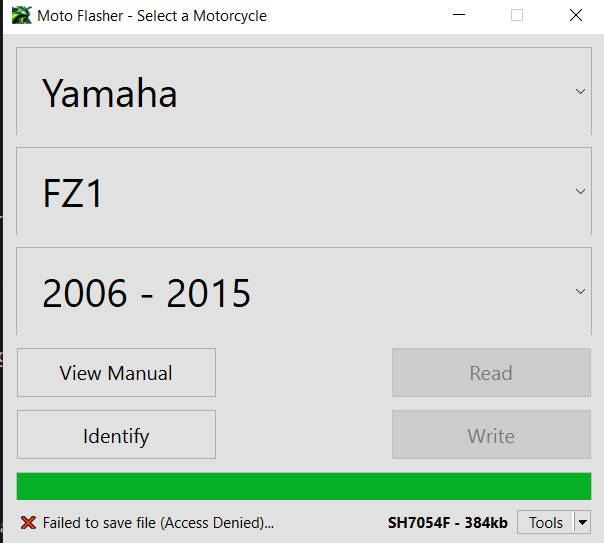
If you are getting an “Access Denied” or “Failed to Save File” error when trying to save a file to your Desktop, don’t worry — it’s usually a simple fix! Here’s what you can do:
1. Run the App as Administrator
Right-click on the application and choose “Run as Administrator.” Some locations like Desktop may require elevated permissions to save files.
2. Check Folder Permissions
Make sure your Windows user account has permission to write to the Desktop:
Right-click on your Desktop → Properties → Security tab → ensure Write permissions are enabled.
3. Save Inside a Folder
Instead of saving directly onto the Desktop, create a folder first (e.g., Desktop\MyFiles) and save inside it. Windows protects the root Desktop more strictly.
4. Pause OneDrive Sync (if applicable)
If your Desktop is synced with OneDrive, syncing may block file saving. Try pausing OneDrive temporarily or saving to another local folder.
5. Check Your Antivirus
Some antivirus or security software may block file operations for unknown apps. Allow the app through your antivirus settings if needed.
6. Make Sure You Have Enough Disk Space
A full disk or errors on the drive can also prevent saving. Free up some space or run a quick disk check if necessary.
✅ In most cases, running the app as Admin or saving into a folder inside Desktop solves the problem immediately! If the issue persists, please contact support and we’ll help you further. 🚀
say hello toMotoFlasher V2
This release brings the latest updates and improvements, and introduces a subscription model. Lifetime users keep full access to all their existing add-ons when they subscribe, with no loss of previously purchased features.
Update now to get the newest version and continue using your add-ons without interruption.